Create coordinated favor, envelope, and event labels
An event often needs a mix of envelope addresses, favor tags, table identifiers, and small package stickers. A shared spreadsheet can keep names and table assignments in one place while the print layout stays consistent.
Choose a label size based on the envelope or favor surface, then test one sample against the finished materials. The tool arranges text from your sheet; it does not create artwork, color backgrounds, or manage guest responses.
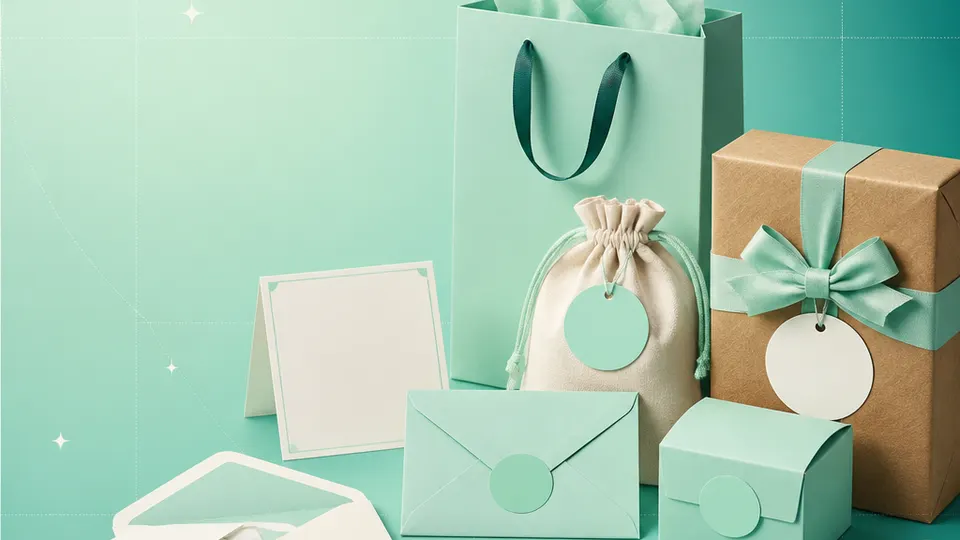
Example packaging shown without real business names or product marks.
Labels you'll print
Start with the package, then choose the sheet.
These product numbers and sizes come from the PrintGenius catalog. Check the package before printing.
Mailing labels
Envelope return and guest labels
Use a compact layout for a return address or a guest list. Check names and postal lines carefully, and keep guest data limited to the people handling the mailing.
Use one row for each product, container, or print variant. Keep changing values in separate columns so you can update a name or date without rebuilding the whole sheet. For fields that should never appear on the customer-facing label, retain them in a separate internal record rather than mapping them into the print layout.
Event group
Guest or table
Favor
Mailing name
Address line
Set name
Family
Table 4
Honey jar
Avery Morgan
42 Alder Street
Autumn dinner
Friends
Table 8
Tea tin
Jordan Lane
18 Harbor Way
Autumn dinner
Welcome set
Room 12
Gift box
Casey Rowan
7 Maple Court
Weekend gathering
Each row becomes a label
Each row becomes a label in the selected layout. If a cell already contains the complete label, whole labels pasted into cells also work. Keep a copy of the reviewed source sheet and compare the first, middle, and last label with the package list before printing.
Freeze the guest or seating list before printing and keep a copy of the final approved sheet. When a name or table changes, update the source row and regenerate the affected labels rather than handwriting corrections across a batch.
Plan the print run
Build a workflow your team can repeat.
Couples, planners, venues, and event-stationery makers can use a consistent source sheet to keep names and batches aligned. The examples below are a starting point; measure the actual stock and check your approved package copy.
Choose between address, favor, and table labels before deciding a template. A label that works on an envelope may overwhelm a small jar lid. Measure the finished object and check the visible margins around the name.
Keep the visual hierarchy simple: event identity, guest or table, and one optional short note. PrintGenius does not add a decorative background or artwork, so the value of the layout is clear and consistent text.
Treat guest addresses as personal data. Share the workbook only with the people who need it and remove temporary copies after the event under your normal process. Do not include payment or private RSVP notes on the printed label.
For a large event, print a small group by table or mailing batch. This makes it easier to find a spelling error before every favor is packed and avoids mixing labels when several tables use similar names.
Features available today
From source rows to a checked sheet.
Label Wizard supports more than 1,400 catalog product numbers, custom sizes, one-label layouts, pasted lists, and spreadsheet input by row or by cell. It can bold lines, shrink text to fit, start at any label on a partly used sheet, and create a PDF, a new Google Doc, or output in the currently open Doc. On rectangular labels, upload, crop, and zoom your logo to place it on the left of the text; it is saved in your Google Drive for next time. Preview and print a test before the production run.
Label Wizard does not create barcodes, QR codes, product images, or color backgrounds. It does not certify product claims or replace a business’s own review process.
Add your logo
Put your brand on rectangular labels.
Upload, crop, and zoom an original logo, then place it on the left of your label text. The logo is saved in your own Google Drive for next time; this feature is for rectangular labels, not round labels.
PGWeddings & eventsProduct · batch · date
Print tips for Weddings & events
Test the stock and the finished surface.
Measure the flat area on favors, envelopes, or boxes, including folds and closures.
Use a consistent name format and proof the latest guest list before printing.
Keep addresses and guest details out of unnecessary shared exports.
Print at Actual size and test one label on the finished favor or envelope.
Related resources
Continue with a matching template, size, and guide.
Avery®-compatible layouts are identified by dimensions and sheet geometry, not by assuming that different brands are interchangeable. Confirm the number and measurements on your own package. PrintGenius is independent and is not affiliated with or endorsed by Avery or any label manufacturer.