Label preserves and pantry jars with a repeatable print workflow
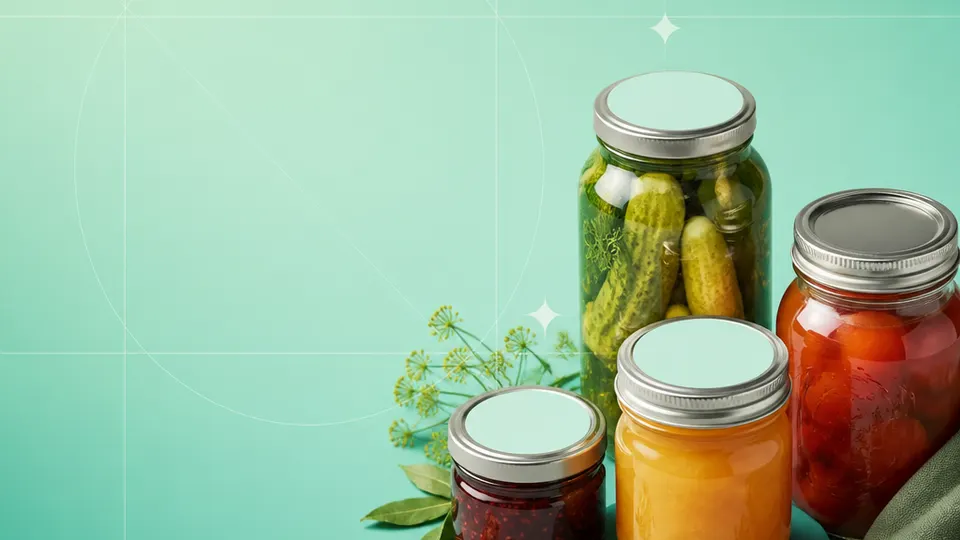
Jars have several possible label surfaces: lid center, curved side, shoulder, or a paper band. Choosing among them depends on the jar shape and how the product will be stored, handled, and gifted.
A spreadsheet can keep product names, batch values, and dates together while each row creates a different print. Match catalog dimensions to the real jar, and use a physical test to check adhesion and readability before preparing a full run.
Example packaging shown without real business names or product marks.
Labels you'll print
Start with the package, then choose the sheet.
These product numbers and sizes come from the PrintGenius catalog. Check the package before printing.
Round labels
Round lid stickers
A circular lid label can identify a preserve from above. Measure the flat center and leave clearance for the lid edge, rim, and any opening tab.
A rectangle can carry a product name and batch code on a jar wall. Keep the label short enough to sit flat and test it on a filled jar with condensation or oily residue removed.
Use a collection field to keep coordinated gifts consistent across flavors. Distinct rows make it possible to print the exact mix without rewriting the template for every set.
A small label can identify a batch or storage bin while the full production record stays in the workbook. Make the printed value easy to compare with the record.
Use one row for each product, container, or print variant. Keep changing values in separate columns so you can update a name or date without rebuilding the whole sheet. For fields that should never appear on the customer-facing label, retain them in a separate internal record rather than mapping them into the print layout.
Product
Fruit or variety
Batch
Made on
Jar size
Seal checked
Gift set
Blueberry Preserve
Wild blueberry
BP-028
2026-09-18
8 oz
Yes
Autumn box
Citrus Marmalade
Seville orange
CM-013
2026-09-24
4 oz
Yes
Market trio
Clover Honey
Spring harvest
CH-006
2026-09-12
12 oz
Yes
Single jar
Each row becomes a label
Each row becomes a label in the selected layout. If a cell already contains the complete label, whole labels pasted into cells also work. Keep a copy of the reviewed source sheet and compare the first, middle, and last label with the package list before printing.
Keep the recipe, fill date, and batch identifier in the record even if the label only shows a subset. Store a short package name as a separate field from the full product description so the same data can support a shelf label and a gift tag. For a mixed gift box, make one row for each actual combination.
Plan the print run
Build a workflow your team can repeat.
Preserve makers, canning kitchens, honey producers, and small-batch pantry brands can use a consistent source sheet to keep names and batches aligned. The examples below are a starting point; measure the actual stock and check your approved package copy.
Measure the jar after selecting the label position. A lid center is flat but may be interrupted by a rim; the side wall is curved and may not hold a wide label evenly. A paper strip wrapped around the jar can help visualize the available width before choosing a template.
Choose materials that suit storage. Cold jars can collect condensation, and pantry products may be handled frequently. Test the stock after chilling or wiping if those conditions are expected. A good on-screen preview cannot predict whether an adhesive will release from a wet surface.
Keep a unique batch field even when the flavor name is familiar. This lets the team reconcile a jar with the current production notes without relying on the label as the entire record.
For seasonal products, use the same columns year to year and compare the new copy against the previous run. Avoid editing a design and spreadsheet simultaneously during a busy production day; proof the values first, then print.
Features available today
From source rows to a checked sheet.
Label Wizard supports more than 1,400 catalog product numbers, custom sizes, one-label layouts, pasted lists, and spreadsheet input by row or by cell. It can bold lines, shrink text to fit, start at any label on a partly used sheet, and create a PDF, a new Google Doc, or output in the currently open Doc. On rectangular labels, upload, crop, and zoom your logo to place it on the left of the text; it is saved in your Google Drive for next time. Preview and print a test before the production run.
Label Wizard does not create barcodes, QR codes, product images, or color backgrounds. It does not certify product claims or replace a business’s own review process.
Add your logo
Put your brand on rectangular labels.
Upload, crop, and zoom an original logo, then place it on the left of your label text. The logo is saved in your own Google Drive for next time; this feature is for rectangular labels, not round labels.
PGJars & canningProduct · batch · date
Print tips for Jars & canning
Test the stock and the finished surface.
Test adhesion on the real jar material and after the storage temperature changes.
For lid stickers, check the printable diameter rather than the lid’s widest measurement.
Leave the opening feature and any jar seam unobstructed.
Print at actual size, compare a plain-paper proof to the jar, and verify the batch/date before loading labels.
Related resources
Continue with a matching template, size, and guide.
Avery®-compatible layouts are identified by dimensions and sheet geometry, not by assuming that different brands are interchangeable. Confirm the number and measurements on your own package. PrintGenius is independent and is not affiliated with or endorsed by Avery or any label manufacturer.