Print cannabis labels from Google Sheets, from pre-roll tubes to mylar bags
Cannabis labels may need a strain, product type, potency, weight, batch, dates, producer details, and warnings. Plan those fields before printing to keep packages consistent.
Label Wizard turns spreadsheet rows into label layouts in Google Docs or Sheets. Choose a catalog template or custom size, review the text, and test-print. It prints supplied information but does not validate cannabis rules or required package statements.
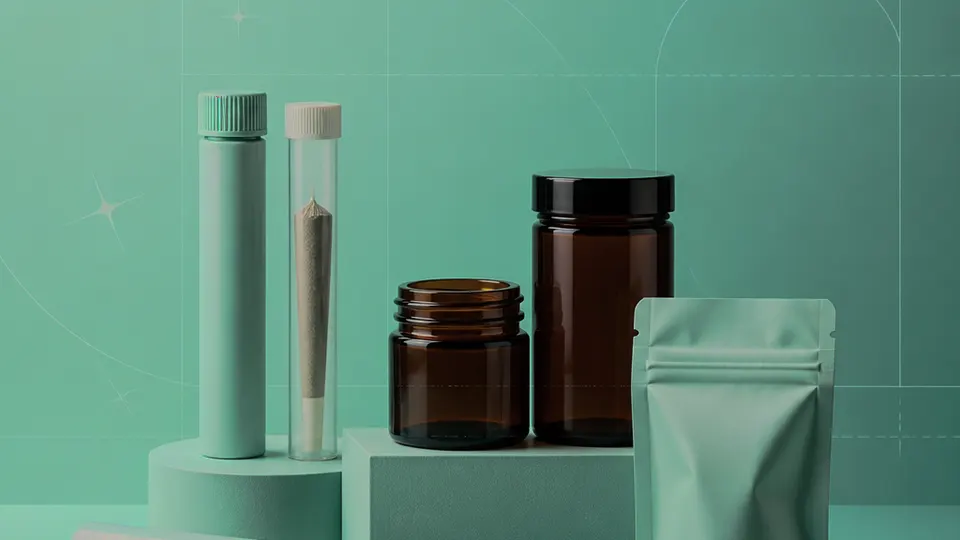
Example packaging shown without real business names or product marks.
Labels you'll print
Start with the package, then choose the sheet.
These product numbers and sizes come from the PrintGenius catalog. Check the package before printing.
Return address labels
Pre-roll tubes and joint tube labels
Keep a short strain name, product type, and batch reference readable on a narrow tube. Separate fields in the sheet so the same layout can be reused for a new run without replacing the whole design.
Round labels identify jar lids at a glance; match the diameter and leave a clear edge margin. Consider 1½-inch Avery 3274.2 or SheetLabels SL125, 2-inch Online Labels OL5375 or SheetLabels SL123, and Avery 5194 for 2½-inch lids.
A larger rectangular label can organize product identity, net weight, dates, and warning text without crowding. Keep the text order consistent so staff can compare a finished pack with its spreadsheet row.
Concentrates, vape cartons, tinctures, and side labels
Choose a compact label for concentrate jars, vape cartons, or tinctures; use a longer side label for strain and lot details. Avery 5160 and 5161 fit different side-label widths.
Use one row for each package version or production batch. Keep changing values in separate columns so you can update a name or date without rebuilding the whole sheet. For fields that should never appear on the customer-facing label, retain them in a separate internal record rather than mapping them into the print layout.
Product
Strain
Type
THC %
CBD %
Net weight
Batch/Lot #
Harvest date
Package date
Producer license #
Warning text
Pre-rolls
Juniper Fog
Hybrid
18%
1%
1 g
JF-042
2026-09-14
2026-10-02
DEMO-OR-01
Keep away from children
Flower
Citrus Harbor
Sativa
21%
0.4%
3.5 g
CH-108
2026-09-22
2026-10-04
DEMO-CA-02
For adults 21+
Gummies
Berry Lantern
Indica
5 mg
0 mg
10 pieces
BL-017
2026-09-30
2026-10-06
DEMO-WA-03
Keep out of reach
Each row becomes a label
Each row becomes a label in the selected layout. Whole labels pasted into cells also work. Review the first, middle, and last labels against the package list before printing.
Use one row per package version and tie warning or serving copy to an approved source. Keep production details in a controlled record, put only approved fields in the print sheet, and compare the product number and batch with the work order before printing.
Plan the print run
Build a workflow your team can repeat.
Dispensaries, cultivators, processors, edibles makers, craft brands, delivery teams, and hemp or CBD businesses can use a consistent source sheet to keep names and batches aligned. The examples below are a starting point; measure the actual stock and check your approved package copy.
For pre-rolls, keep the strain or product name and a short batch reference readable on the narrow tube. Move longer copy to a larger package label when appropriate.
For jars, lid labels aid quick identification; side labels fit longer names. Keep the layouts related and avoid copying values into separate manual files.
For mylar, cartons, and delivery orders, organize a print queue by package size. Review the range and last row to avoid using a tube label on a pouch.
Features available today
From source rows to a checked sheet.
Choose from 1,400+ catalog layouts or custom sizes. Use one label, a pasted list, or spreadsheet rows or cells; bold lines, shrink text, and start on a partly used sheet. Output to PDF, a new Doc, or the active Doc. Upload, crop, and zoom a logo for the left side of rectangular labels; it saves in your Drive.
Label Wizard does not create barcodes, QR codes, product images, or color backgrounds. It does not certify product claims or replace a business’s own review process.
Add your logo
Put your brand on rectangular labels.
Upload, crop, and zoom an original logo, then place it on the left of your label text. The logo is saved in your own Google Drive for next time; this feature is for rectangular labels, not round labels.
Mylar bag label · invented brandRectangular jar-side label · not a round lid label
Print tips for Cannabis
Test the stock and the finished surface.
For concentrates and edibles, test waterproof or oil-resistant stock; moisture and oils can affect adhesion.
Keep key copy clear of seams, rims, folds, and curved edges. A paper mock-up reveals overlaps.
Auto-shrink can help 6–7 pt copy fit, but test-print to confirm warnings stay legible.
Use the start-at-any-label option for partial sheets and test at Actual size before printing.
Cannabis compliance: confirm locally
Cannabis labeling rules are set by each state (and country). They usually cover required warnings, the universal symbol, potency, batch and testing information, license numbers, and font sizes. Label Wizard prints exactly what you put in your sheet. It doesn't check compliance, so confirm requirements with your state regulator.
Measure the usable flat area on the tube and compare it with the dimensions listed for a catalog layout. The Avery 5167 and 8195 records are narrow options in this catalog; confirm the fit on the package before printing.
Can I print strain, potency, and batch fields from a spreadsheet?
Yes. Put each value in its own column and preview a few rows first. Label Wizard prints the supplied text; it does not calculate potency or check a batch record.
Do you have Avery templates for cannabis jars?
The catalog includes Avery round-label records such as 3274.2 and 5194. It also lists other manufacturers. Compare the exact diameter and package number rather than relying on a category name.
Will these labels meet my state's rules?
Label Wizard does not check cannabis compliance. Requirements vary by jurisdiction and product. Confirm required copy, symbols, type size, and placement with the regulator that applies to your business.
Can different strains print on one sheet?
Yes. Each spreadsheet row can create a different label, so a reviewed mixed batch can include several variants. Check row order and quantities before printing.
Can I use a partly used sheet?
Yes. Choose the start position for the remaining labels, then print a plain-paper test to confirm that the next label aligns with the physical sheet.
Next step
Open Label Wizard in Google Docs or Sheets.
Choose the matching template, review your rows, and test a page before printing.
Avery®-compatible layouts are identified by dimensions and sheet geometry, not by assuming that different brands are interchangeable. Confirm the number and measurements on your own package. PrintGenius is independent and is not affiliated with or endorsed by Avery or any label manufacturer.