Print candle labels that stay clear from the first pour to the last burn
A candle label has to identify the scent while fitting a curved jar, a shallow tin, or a gift box. The print layout should leave room for the product name, scent notes, batch reference, and any care copy your business has approved.
A spreadsheet helps keep seasonal variants aligned. Store one candle or batch per row, use a consistent naming pattern, and preview the label before printing. Catalog dimensions are a starting point; the container surface and material determine whether a particular stock is a good fit.
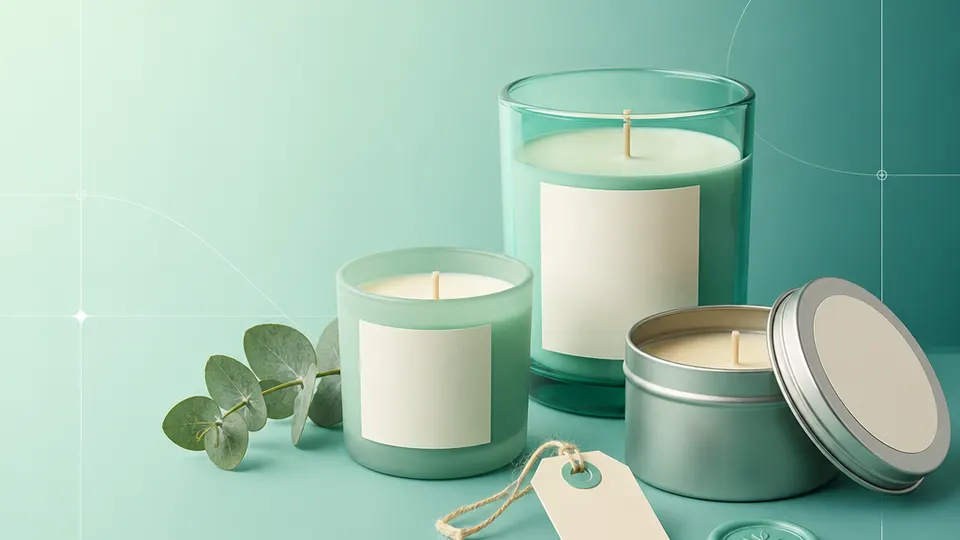
Example packaging shown without real business names or product marks.
Labels you'll print
Start with the package, then choose the sheet.
These product numbers and sizes come from the PrintGenius catalog. Check the package before printing.
Candle labels
Jar front labels
Give the scent name and collection a clear focal point, then keep the maker or batch detail secondary. A wide rectangle can sit on a flat jar face; a round option can work on a lid when its diameter matches.
A compact top label helps distinguish similar scents on a shelf or in a shipping box. Plan for the lid’s usable flat area rather than the outside diameter, which may include a rolled edge.
Use a separate, readable label or insert for approved candle-care language. Avoid squeezing instructions into a decorative scent label when the product needs a more legible treatment.
A repeatable layout keeps a trio or seasonal set looking coordinated. Print a different row for each scent and use a collection field to group the labels without changing the underlying design.
Use one row for each product, container, or print variant. Keep changing values in separate columns so you can update a name or date without rebuilding the whole sheet. For fields that should never appear on the customer-facing label, retain them in a separate internal record rather than mapping them into the print layout.
Collection
Scent
Wax
Vessel
Batch
Pour date
Care copy
Coastline
Salted Fig
Soy blend
Amber jar
CF-11
2026-10-04
Trim wick before lighting
Quiet Hours
Cedar Linen
Coconut wax
Travel tin
QH-08
2026-10-07
Burn within sight
Garden Notes
Pear Blossom
Soy blend
Clear jar
GN-23
2026-10-10
Keep away from drafts
Each row becomes a label
Each row becomes a label in the selected layout. If a cell already contains the complete label, whole labels pasted into cells also work. Keep a copy of the reviewed source sheet and compare the first, middle, and last label with the package list before printing.
Use the vessel column to distinguish jar, tin, and refill labels even when two products share a scent name. Keep the printed copy intentionally short, but retain the full recipe and pour record in your production sheet. A batch code can connect a finished item to its production notes without taking over the design.
Plan the print run
Build a workflow your team can repeat.
Candle makers, studios, market sellers, and small-batch home-fragrance brands can use a consistent source sheet to keep names and batches aligned. The examples below are a starting point; measure the actual stock and check your approved package copy.
Before selecting a layout, measure the flat panel on the jar or tin. A curved surface can make a rectangle wrinkle at the corners, and a label that reaches the lid seam may lift when handled. Test the intended stock on the real vessel, not only on a screen.
If you use a lid label, measure the flat center and keep a margin around the rim. Round templates are useful when the lid is actually round, but the diameter still needs to match the printable surface. A decorative circle is not a substitute for checking the fit.
Build a scent list with consistent spelling and a separate collection field. When a seasonal fragrance returns, the same template can be reused without reformatting all the other scents. Review the scent, vessel, and batch columns together before a market run.
Care information should remain legible and should follow the guidance your business uses for its products. Do not assume a template contains required safety language. Put the approved text in its own column and proofread the printed result.
Features available today
From source rows to a checked sheet.
Label Wizard supports more than 1,400 catalog product numbers, custom sizes, one-label layouts, pasted lists, and spreadsheet input by row or by cell. It can bold lines, shrink text to fit, start at any label on a partly used sheet, and create a PDF, a new Google Doc, or output in the currently open Doc. On rectangular labels, upload, crop, and zoom your logo to place it on the left of the text; it is saved in your Google Drive for next time. Preview and print a test before the production run.
Label Wizard does not create barcodes, QR codes, product images, or color backgrounds. It does not certify product claims or replace a business’s own review process.
Add your logo
Put your brand on rectangular labels.
Upload, crop, and zoom an original logo, then place it on the left of your label text. The logo is saved in your own Google Drive for next time; this feature is for rectangular labels, not round labels.
PGCandlesProduct · batch · date
Print tips for Candles
Test the stock and the finished surface.
Choose adhesive and face stock that suit glass, metal, wax residue, and any temperature changes the container will experience.
Keep labels away from seams, lids that twist, and areas where hands routinely grip the vessel.
Use a short scent line and check the smallest type at print size; the auto-shrink feature needs a physical readability check.
Print at 100% or Actual size and test one label on the finished vessel before preparing a large batch.
Related resources
Continue with a matching template, size, and guide.
Avery®-compatible layouts are identified by dimensions and sheet geometry, not by assuming that different brands are interchangeable. Confirm the number and measurements on your own package. PrintGenius is independent and is not affiliated with or endorsed by Avery or any label manufacturer.