Make prep and storage labels easier to read and repeat
A busy kitchen uses labels to identify prep items, storage bins, batches, and dates. The useful label is the one that matches the container, stays readable in its environment, and can be checked against a current preparation record.
A spreadsheet can organize routine runs by item and date. Use one row per prepared item, print a short identifier, and keep full recipe and safety records in the system your kitchen already uses. Label Wizard does not calculate shelf life or determine food-safety rules.
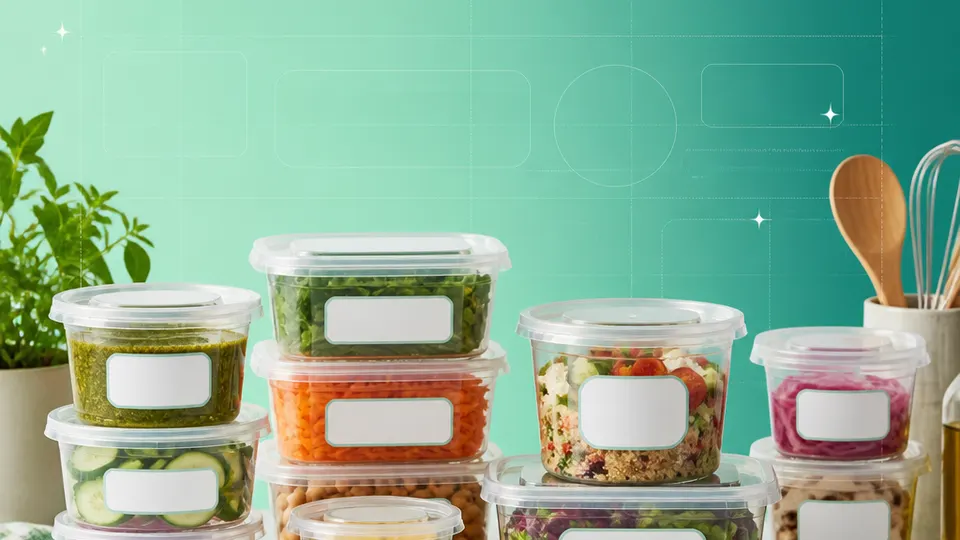
Example packaging shown without real business names or product marks.
Labels you'll print
Start with the package, then choose the sheet.
These product numbers and sizes come from the PrintGenius catalog. Check the package before printing.
Mini labels
Prep-container labels
Use a compact layout for item name, prep date, and a short team identifier. Keep the wording consistent so a container can be compared with the shift’s prep list.
A short product name can distinguish an order or prepared package. Leave closures and seals clear, and avoid printing more customer information than the handoff needs.
A text-only identifier can mark a shelf, drawer, or supply bin. Use a stable name that matches the kitchen map rather than creating a second naming system.
Use one row for each product, container, or print variant. Keep changing values in separate columns so you can update a name or date without rebuilding the whole sheet. For fields that should never appear on the customer-facing label, retain them in a separate internal record rather than mapping them into the print layout.
Prepared item
Station
Batch
Prep date
Use-by from approved plan
Container
Roasted vegetables
Cold line
RV-12
2026-10-21
2026-10-22
1/3 pan
Lemon dressing
Garde manger
LD-07
2026-10-21
2026-10-23
Bottle
Catering rolls
Bake station
CR-31
2026-10-20
2026-10-21
Covered tray
Each row becomes a label
Each row becomes a label in the selected layout. If a cell already contains the complete label, whole labels pasted into cells also work. Keep a copy of the reviewed source sheet and compare the first, middle, and last label with the package list before printing.
The date in a sample row is only an example; use the limit established by the food-safety plan and applicable rules. Keep a separate prep record that captures who prepared an item and what process was followed. A printed label supports identification but does not replace the record or a temperature-control step.
Plan the print run
Build a workflow your team can repeat.
Restaurant kitchens, meal-prep teams, caterers, and food-service operations can use a consistent source sheet to keep names and batches aligned. The examples below are a starting point; measure the actual stock and check your approved package copy.
Design for a fast kitchen scan. A short item name and clear date are more useful than a paragraph. Choose a label size that fits the container without covering the lid or the place where staff write additional notes.
Keep item, station, batch, and date values in separate spreadsheet columns. This makes it easier to update a prep list when a station changes or a container format changes. A row should describe one actual container or batch, not several unrelated items.
Use consistent words for the same ingredient across shifts. Abbreviations can save space, but only if the whole team recognizes them. Keep a small data dictionary in the workbook so a new team member does not have to guess at a shortened product name.
If labels are printed for a full shift, check the current date and the row count immediately before printing. Remove stale sample data and do not use an old sheet as a template without verifying its values.
Features available today
From source rows to a checked sheet.
Label Wizard supports more than 1,400 catalog product numbers, custom sizes, one-label layouts, pasted lists, and spreadsheet input by row or by cell. It can bold lines, shrink text to fit, start at any label on a partly used sheet, and create a PDF, a new Google Doc, or output in the currently open Doc. On rectangular labels, upload, crop, and zoom your logo to place it on the left of the text; it is saved in your Google Drive for next time. Preview and print a test before the production run.
Label Wizard does not create barcodes, QR codes, product images, or color backgrounds. It does not certify product claims or replace a business’s own review process.
Add your logo
Put your brand on rectangular labels.
Upload, crop, and zoom an original logo, then place it on the left of your label text. The logo is saved in your own Google Drive for next time; this feature is for rectangular labels, not round labels.
PGRestaurants & prepProduct · batch · date
Print tips for Restaurants & prep
Test the stock and the finished surface.
Choose a stock that works with the container material, moisture, refrigeration, and any cleaning routine.
Keep the label visible on stacked pans and clear of lids, seams, and food-contact surfaces.
Use large, concise text and avoid auto-shrinking critical dates until they become difficult to read.
Print a paper test at 100% and confirm the current date and container mapping before the shift.
Related resources
Continue with a matching template, size, and guide.
Avery®-compatible layouts are identified by dimensions and sheet geometry, not by assuming that different brands are interchangeable. Confirm the number and measurements on your own package. PrintGenius is independent and is not affiliated with or endorsed by Avery or any label manufacturer.