Prepare handmade product labels from your studio inventory
A handmade shop may sell a changing mix of soaps, ceramics, textiles, paper goods, and gift sets. Labels should identify each product without forcing the maker to rebuild a layout every time a color or batch changes.
Keep product data in a spreadsheet and choose a template for the package or display surface. Label Wizard prints text you supply in a Docs or Sheets workflow; on rectangular labels, you can add your own logo beside that text.
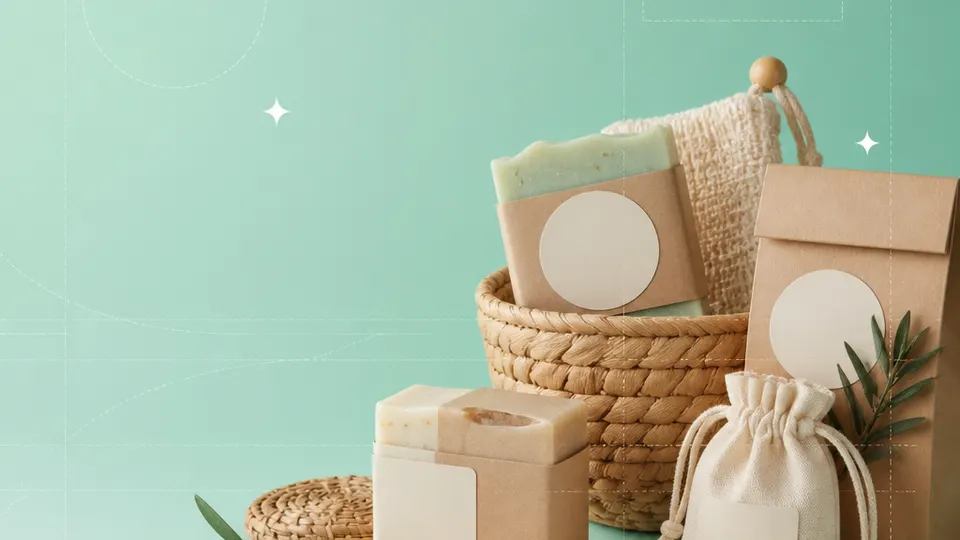
Example packaging shown without real business names or product marks.
Labels you'll print
Start with the package, then choose the sheet.
These product numbers and sizes come from the PrintGenius catalog. Check the package before printing.
Multipurpose labels
Thank-you and package stickers
A small round or rectangular sticker can identify a collection or package type. Use a short message and leave room for the parcel closure.
A larger layout can hold concise care or material text that your business has reviewed. Keep full product records in the studio workbook and proof line breaks on paper.
Use a short product name or variant label to distinguish items on a display. Keep price values in a dedicated field so a sale or update is easy to review.
Use one row for each product, container, or print variant. Keep changing values in separate columns so you can update a name or date without rebuilding the whole sheet. For fields that should never appear on the customer-facing label, retain them in a separate internal record rather than mapping them into the print layout.
Product
Material
Color or scent
Batch
Care text
Price
Collection
Clay cup
Stoneware
Sea glass
CC-032
Hand wash
$28
Coastline
Woven pouch
Cotton
Natural
WP-019
Cold wash
$22
Field notes
Gift soap
Plant oil base
Cedar
GS-014
Keep dry
$12
Winter table
Each row becomes a label
Each row becomes a label in the selected layout. If a cell already contains the complete label, whole labels pasted into cells also work. Keep a copy of the reviewed source sheet and compare the first, middle, and last label with the package list before printing.
Use a shared product identifier for the studio record and the label row. Keep variable details such as color, scent, price, and batch in separate columns. When a piece is one-of-a-kind, make that distinction explicit in the record rather than relying on a handwritten mark after printing.
Plan the print run
Build a workflow your team can repeat.
Makers, craft studios, market vendors, and small handmade-product businesses can use a consistent source sheet to keep names and batches aligned. The examples below are a starting point; measure the actual stock and check your approved package copy.
Begin with the finished package or display surface. A textile tag, glass jar, paper box, and ceramic bottom have very different shapes and adhesives. Measure the intended position and use a test label to see how the material behaves.
Decide which information helps a customer and which information is for studio operations. Customer-facing copy might include product identity and care; an internal batch code may be more useful on a storage bin than on a retail package.
For a collection, use one row per product variant and a stable collection field. This lets the maker prepare a matching set without copying the same style or care text into several separate designs.
If the product changes seasonally, keep a revision date or source note in the workbook. A small, dated print batch is easier to verify than a large stack of labels created from an old file.
Features available today
From source rows to a checked sheet.
Label Wizard supports more than 1,400 catalog product numbers, custom sizes, one-label layouts, pasted lists, and spreadsheet input by row or by cell. It can bold lines, shrink text to fit, start at any label on a partly used sheet, and create a PDF, a new Google Doc, or output in the currently open Doc. On rectangular labels, upload, crop, and zoom your logo to place it on the left of the text; it is saved in your Google Drive for next time. Preview and print a test before the production run.
Label Wizard does not create barcodes, QR codes, product images, or color backgrounds. It does not certify product claims or replace a business’s own review process.
Add your logo
Put your brand on rectangular labels.
Upload, crop, and zoom an original logo, then place it on the left of your label text. The logo is saved in your own Google Drive for next time; this feature is for rectangular labels, not round labels.
PGCrafts & handmadeProduct · batch · date
Print tips for Crafts & handmade
Test the stock and the finished surface.
Test adhesion on the actual paper, glass, ceramic, textile packaging, or plastic container.
Avoid placing labels over a fold, closure, or product area that needs to remain visible.
Keep customer-facing copy short, and proof prices and care instructions before printing.
Print a plain-paper proof at 100% and test one label on the finished package.
Related resources
Continue with a matching template, size, and guide.
Yes. Put each product or variant on a row and select the layout that fits its package.
Can I add my logo to a label?
Yes. Upload, crop, and zoom your logo for placement on the left of text on rectangular labels. It is saved in your Google Drive for next time; logo placement is not available on round labels.
Can I track batch and price fields?
Yes. Keep them in separate columns and choose which values belong on the printed label.
Can I use the same template for different products?
Yes, when the stock and dimensions fit. Preview each variant before printing.
Will a label stick to a ceramic mug?
Adhesion depends on the glaze, curve, and surface conditions. Test the chosen stock on the actual item.
Can I finish a partly used sheet?
Yes. Select the starting label and check alignment with a paper test.
Next step
Open Label Wizard in Google Docs or Sheets.
Choose the matching template, review your rows, and test a page before printing.
Avery®-compatible layouts are identified by dimensions and sheet geometry, not by assuming that different brands are interchangeable. Confirm the number and measurements on your own package. PrintGenius is independent and is not affiliated with or endorsed by Avery or any label manufacturer.