Plan clear soap and skincare labels from one product sheet
A small soap or skincare line can contain bars, tubes, bottles, tins, and seasonal sets. Each package has a different surface, while the team still needs a consistent way to track product names, batches, and approved ingredient copy.
Use a spreadsheet as the handoff between a product list and a print run. Choose a layout that fits the package, keep each version in its own row, and check the finished label at actual print size. A template helps organize text; it does not confirm cosmetic claims or regulatory requirements.
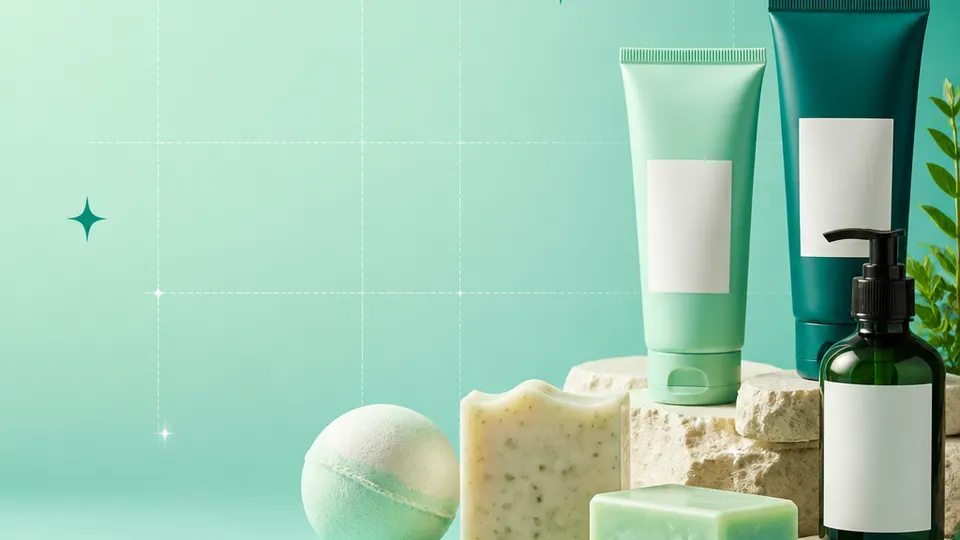
Example packaging shown without real business names or product marks.
Labels you'll print
Start with the package, then choose the sheet.
These product numbers and sizes come from the PrintGenius catalog. Check the package before printing.
Multipurpose labels
Soap band and bar labels
A narrow wrap or front label can identify a scent and batch without covering the whole bar. Measure the band area and avoid placing a fold over the name or a critical field.
A compact rectangle works for a short product name and variant. Keep long copy out of the narrowest panel and use a separate approved source for full formulation details.
A round lid label can distinguish a scent or gift set. Confirm the diameter against the flat lid area and keep the edge clear so normal handling does not peel the sticker.
Use a larger label for the product version, batch reference, and the text your team has approved. A separate batch record makes it easier to reconcile a printed pack with the production run.
Use one row for each product, container, or print variant. Keep changing values in separate columns so you can update a name or date without rebuilding the whole sheet. For fields that should never appear on the customer-facing label, retain them in a separate internal record rather than mapping them into the print layout.
Product
Scent
Format
Batch
Made on
Approved copy
Package size
Oat Bar
Honey Oat
Soap bar
OB-041
2026-10-02
Unscented base
4 oz
Daily Balm
Citrus Leaf
Tin
DB-018
2026-10-05
External use
1.5 oz
Soft Hands
Rose Water
Lotion
SH-026
2026-10-08
Fragrance-free
2 oz
Each row becomes a label
Each row becomes a label in the selected layout. If a cell already contains the complete label, whole labels pasted into cells also work. Keep a copy of the reviewed source sheet and compare the first, middle, and last label with the package list before printing.
Keep package format and product version separate in the spreadsheet. A soap bar and a matching lotion can share a scent family, but they may need different label dimensions and approved copy. Assign each variant a stable internal product code so a staff member can compare the printed stack with the production sheet.
Plan the print run
Build a workflow your team can repeat.
Soap makers, bath-product studios, skin-care makers, and small personal-care brands can use a consistent source sheet to keep names and batches aligned. The examples below are a starting point; measure the actual stock and check your approved package copy.
Start by identifying the surface: paper band, bottle curve, tube panel, or tin lid. The usable area is usually smaller than the package’s outside dimensions. A quick paper mock-up can show whether a fold, cap, or seam interrupts the label.
Arrange information by purpose. Put the product identity where a shopper can find it quickly, then add the fields your business has approved for that format. Keep the source of longer ingredient or instruction copy in a controlled document so updates do not get lost in a label file.
When a product has several scents, store scent names as values rather than separate designs. This reduces spelling drift across the range. Preview the first and last row in each print batch because alphabetic sorts or filters can change the expected order.
For gift bundles, track both the bundle name and the contents. The outer package may need a different label from each item inside it. A clear template name and a batch reference help the packer choose the right sheet.
Features available today
From source rows to a checked sheet.
Label Wizard supports more than 1,400 catalog product numbers, custom sizes, one-label layouts, pasted lists, and spreadsheet input by row or by cell. It can bold lines, shrink text to fit, start at any label on a partly used sheet, and create a PDF, a new Google Doc, or output in the currently open Doc. On rectangular labels, upload, crop, and zoom your logo to place it on the left of the text; it is saved in your Google Drive for next time. Preview and print a test before the production run.
Label Wizard does not create barcodes, QR codes, product images, or color backgrounds. It does not certify product claims or replace a business’s own review process.
Add your logo
Put your brand on rectangular labels.
Upload, crop, and zoom an original logo, then place it on the left of your label text. The logo is saved in your own Google Drive for next time; this feature is for rectangular labels, not round labels.
PGSoap & skincareProduct · batch · date
Print tips for Soap & skincare
Test the stock and the finished surface.
Choose stock tested for the package surface, bathroom humidity, oils, and handling. Adhesion varies across glass, metal, paper, and soft plastic.
Leave a gap at a tube seam and keep the product name away from the cap line.
Use readable type and test long ingredient or care copy; automatic shrinking can make text too small for the intended package.
Print at Actual size, check a plain-paper proof against the real package, and only then load the chosen label stock.
Related resources
Continue with a matching template, size, and guide.
Avery®-compatible layouts are identified by dimensions and sheet geometry, not by assuming that different brands are interchangeable. Confirm the number and measurements on your own package. PrintGenius is independent and is not affiliated with or endorsed by Avery or any label manufacturer.