Make pantry jars and home storage easier to navigate
A pantry can include jars, tins, freezer containers, and storage bins that arrive in several shapes. A consistent label system makes it easier to find items and return them to the same place.
List the container, contents, and location in a spreadsheet, then choose label stock based on the material and storage conditions. A label is an aid to organization, not a substitute for checking what is inside a container.
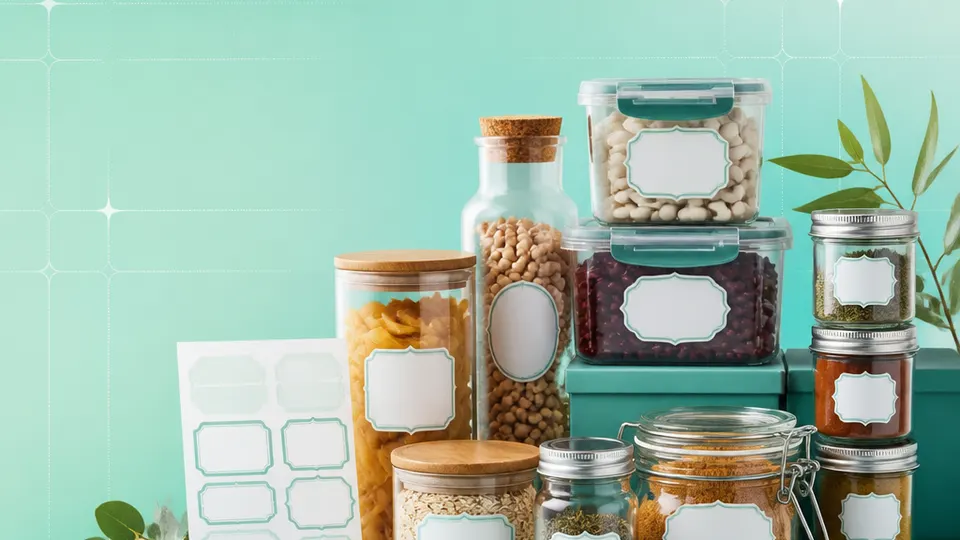
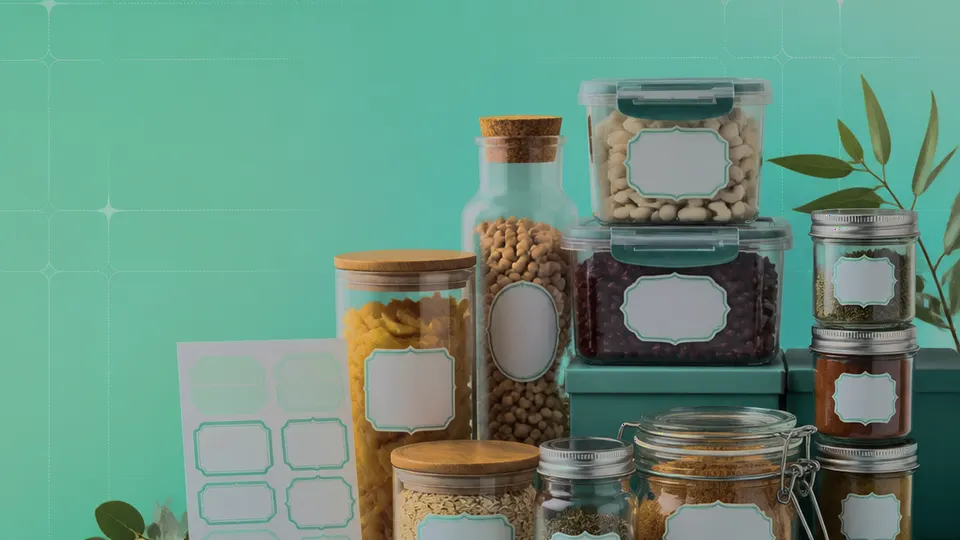
Example packaging shown without real business names or product marks.
Labels you'll print
Start with the package, then choose the sheet.
These product numbers and sizes come from the PrintGenius catalog. Check the package before printing.
Bottle/jar labels
Jar lids and pantry jars
A round lid label can identify a jar from above; a side label can hold a longer name. Measure the flat lid and leave room for the rim.
A concise label helps distinguish similar spices or baking ingredients. Keep the wording standardized and choose a size that remains readable on the small container.
Use a text label to identify the contents and date from your household plan. Adhesive performance varies in cold and damp conditions, so test the selected stock.
A label can identify a box or drawer by category. Use the same category name in your home inventory so items are easier to return after a move or seasonal change.
Use one row for each product, container, or print variant. Keep changing values in separate columns so you can update a name or date without rebuilding the whole sheet. For fields that should never appear on the customer-facing label, retain them in a separate internal record rather than mapping them into the print layout.
Container
Contents
Room
Shelf
Restock note
Packed on
Glass jar
Rolled oats
Kitchen
Pantry 1
Weekly
2026-10-20
Small tin
Smoked paprika
Kitchen
Spice drawer
Monthly
2026-10-14
Storage box
Winter linens
Hall closet
Top shelf
Seasonal
2026-09-29
Each row becomes a label
Each row becomes a label in the selected layout. If a cell already contains the complete label, whole labels pasted into cells also work. Keep a copy of the reviewed source sheet and compare the first, middle, and last label with the package list before printing.
Use simple, familiar words for contents and locations. If the household stores several versions of the same item, include a size or variety in the row. Keep a separate restock note or inventory quantity when that is useful, but do not print details that will be outdated before the next use.
Plan the print run
Build a workflow your team can repeat.
Households, home organizers, shared kitchens, and small pantry teams can use a consistent source sheet to keep names and batches aligned. The examples below are a starting point; measure the actual stock and check your approved package copy.
Choose whether the label goes on the lid, side, drawer front, or shelf. A lid label is easy to see from above; a side label is easier when containers are stacked. Check that the printed value remains visible in the normal storage arrangement.
Measure a filled container, especially if it has a curved body or a small lid. A larger sticker may wrap poorly or interfere with a latch. A paper mock-up helps test width and placement before using a full sheet.
For shared kitchens, prefer an ingredient or contents name over a private person's name. Use a consistent date format if the household tracks when something was packed or opened. Labels can support organization but should not replace food-safety or allergen checks.
Review the list seasonally. Remove labels for items that moved, replace outdated container names, and update the storage location in the workbook before printing a new set.
Features available today
From source rows to a checked sheet.
Label Wizard supports more than 1,400 catalog product numbers, custom sizes, one-label layouts, pasted lists, and spreadsheet input by row or by cell. It can bold lines, shrink text to fit, start at any label on a partly used sheet, and create a PDF, a new Google Doc, or output in the currently open Doc. On rectangular labels, upload, crop, and zoom your logo to place it on the left of the text; it is saved in your Google Drive for next time. Preview and print a test before the production run.
Label Wizard does not create barcodes, QR codes, product images, or color backgrounds. It does not certify product claims or replace a business’s own review process.
Add your logo
Put your brand on rectangular labels.
Upload, crop, and zoom an original logo, then place it on the left of your label text. The logo is saved in your own Google Drive for next time; this feature is for rectangular labels, not round labels.
PGHome & pantryProduct · batch · date
Print tips for Home & pantry
Test the stock and the finished surface.
Choose adhesive tested for glass, plastic, metal, freezer conditions, or repeated handling as needed.
Keep the label away from lids, hinges, and container seams.
Use concise names that remain visible when containers are stacked.
Print at actual size and test one label on a filled container before the full set.
Related resources
Continue with a matching template, size, and guide.
Avery®-compatible layouts are identified by dimensions and sheet geometry, not by assuming that different brands are interchangeable. Confirm the number and measurements on your own package. PrintGenius is independent and is not affiliated with or endorsed by Avery or any label manufacturer.