Keep coffee and tea packaging consistent from batch to shelf
Coffee and tea packaging changes with origin, roast, blend, format, and batch. A label needs to fit the bag or tin without hiding its closure, while the working sheet must keep those variants organized.
Use a spreadsheet row for each product and package version. Print only the fields approved for the package, preview every variant, and confirm the final stock on the real bag or tin. Label Wizard handles layout and printing; it does not validate tasting notes, origin claims, or packaging rules.
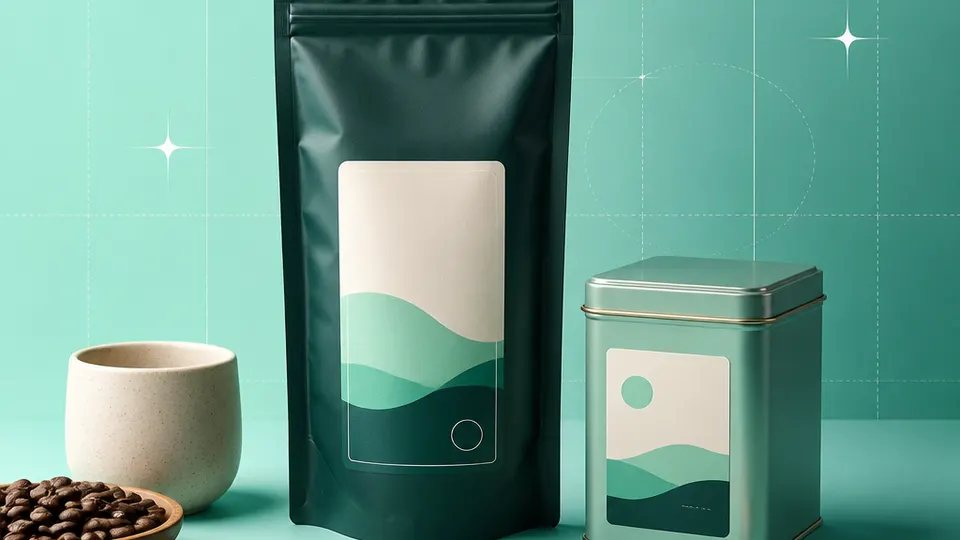
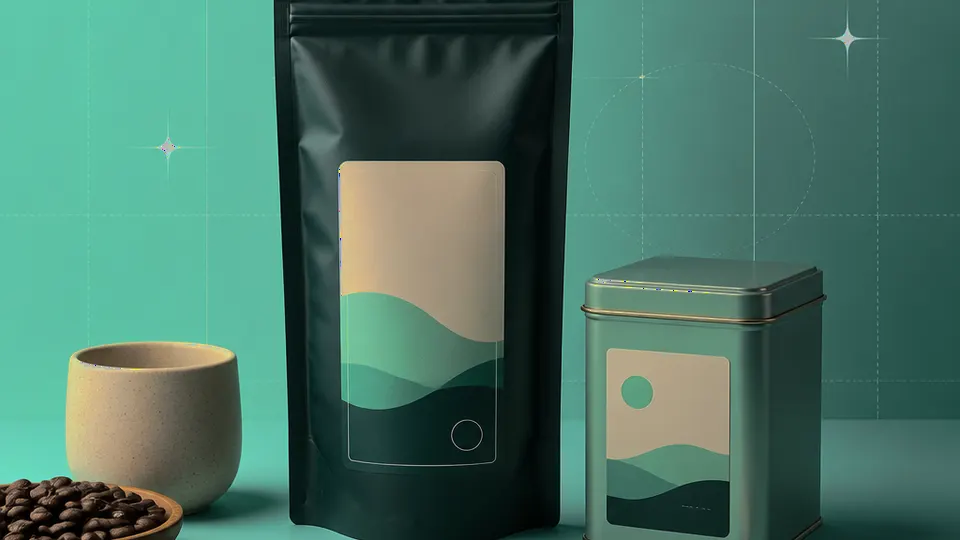
Example packaging shown without real business names or product marks.
Labels you'll print
Start with the package, then choose the sheet.
These product numbers and sizes come from the PrintGenius catalog. Check the package before printing.
Shipping labels
Coffee pouch front labels
Use a clear product name and roast or blend field on a bag face. Keep the bottom seal and zip closure free, and test the label on the material that will actually be sold.
A smaller label can hold a roast date or lot code. Use a consistent date format and check that the value corresponds to the batch record before printing.
A lid sticker helps identify a tea blend from above; a side label can carry a longer name. Choose the layout after measuring the flat area and the lid’s edge.
A collection name can group small packs without changing the flavor fields. Make one row per pack so the right label follows the right product into a sampler.
Use one row for each product, container, or print variant. Keep changing values in separate columns so you can update a name or date without rebuilding the whole sheet. For fields that should never appear on the customer-facing label, retain them in a separate internal record rather than mapping them into the print layout.
Product
Origin
Roast or style
Process
Batch
Packed on
Net weight
Harbor Blend
Colombia
Medium roast
Washed
HB-106
2026-10-15
12 oz
Evening Mint
Peppermint
Herbal tea
Dried
EM-019
2026-10-16
2 oz
North Ridge
Ethiopia
Light roast
Natural
NR-044
2026-10-17
8 oz
Each row becomes a label
Each row becomes a label in the selected layout. If a cell already contains the complete label, whole labels pasted into cells also work. Keep a copy of the reviewed source sheet and compare the first, middle, and last label with the package list before printing.
Keep product identity separate from tasting notes and production data. A bag may need a short front label while a separate record stores the full origin, roast curve, or blend notes. Use a stable batch code to connect the print run to the record, then sort the print sheet to match the packing order.
Plan the print run
Build a workflow your team can repeat.
Independent coffee roasters, tea blenders, cafes, and small beverage brands can use a consistent source sheet to keep names and batches aligned. The examples below are a starting point; measure the actual stock and check your approved package copy.
Measure the bag face and leave room around the zipper, gusset, and heat seal. A flat measurement taken before filling can be misleading because a filled pouch bulges. Test the label after the package is filled and closed.
For tins, compare lid and side options. A round label can work on a lid, but the circumference and rim reduce the printable area. A side label may be easier to scan on a shelf if the tin sits in a row.
Keep origins, roast levels, and blend components in separate columns. This makes seasonal replacements easier and reduces accidental reuse of a previous batch’s values. Review the row count when a limited run has fewer packs than the standard size.
If you print a sampler, create explicit rows for each included pack. Avoid relying on color or a handwritten mark to identify which label belongs to which blend; the printed product value should be clear.
Features available today
From source rows to a checked sheet.
Label Wizard supports more than 1,400 catalog product numbers, custom sizes, one-label layouts, pasted lists, and spreadsheet input by row or by cell. It can bold lines, shrink text to fit, start at any label on a partly used sheet, and create a PDF, a new Google Doc, or output in the currently open Doc. On rectangular labels, upload, crop, and zoom your logo to place it on the left of the text; it is saved in your Google Drive for next time. Preview and print a test before the production run.
Label Wizard does not create barcodes, QR codes, product images, or color backgrounds. It does not certify product claims or replace a business’s own review process.
Add your logo
Put your brand on rectangular labels.
Upload, crop, and zoom an original logo, then place it on the left of your label text. The logo is saved in your own Google Drive for next time; this feature is for rectangular labels, not round labels.
PGCoffee & teaProduct · batch · date
Print tips for Coffee & tea
Test the stock and the finished surface.
Test adhesion on the actual bag film, paper, tin, or jar rather than assuming all packaging materials behave alike.
Keep the label clear of the zipper and heat seal so it does not compromise opening or closing.
Check roast dates and weights against the packing record, especially when several products share a similar name.
Print at Actual size and inspect a filled package before running the full batch.
Related resources
Continue with a matching template, size, and guide.
Avery®-compatible layouts are identified by dimensions and sheet geometry, not by assuming that different brands are interchangeable. Confirm the number and measurements on your own package. PrintGenius is independent and is not affiliated with or endorsed by Avery or any label manufacturer.