Organize shipping and return-address labels from a spreadsheet
A shipping day can include customer addresses, return labels, inventory notes, and inserts for several order types. A spreadsheet-driven label run helps keep rows in order and gives the team a preview before printing.
Use the catalog to match a stock number and sheet dimensions, or enter a custom size. Label Wizard creates printable layouts from the text in your sheet; it does not purchase postage, validate addresses, or generate tracking codes.
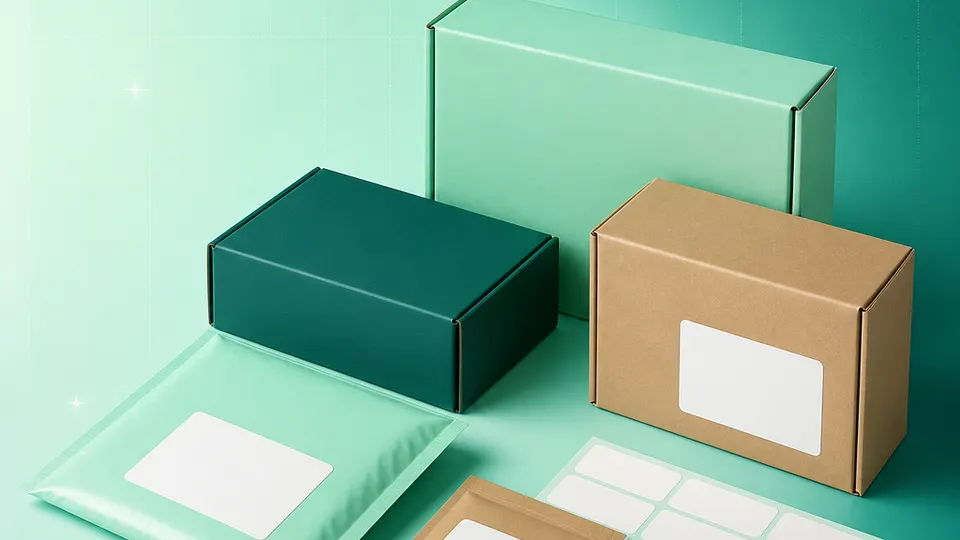
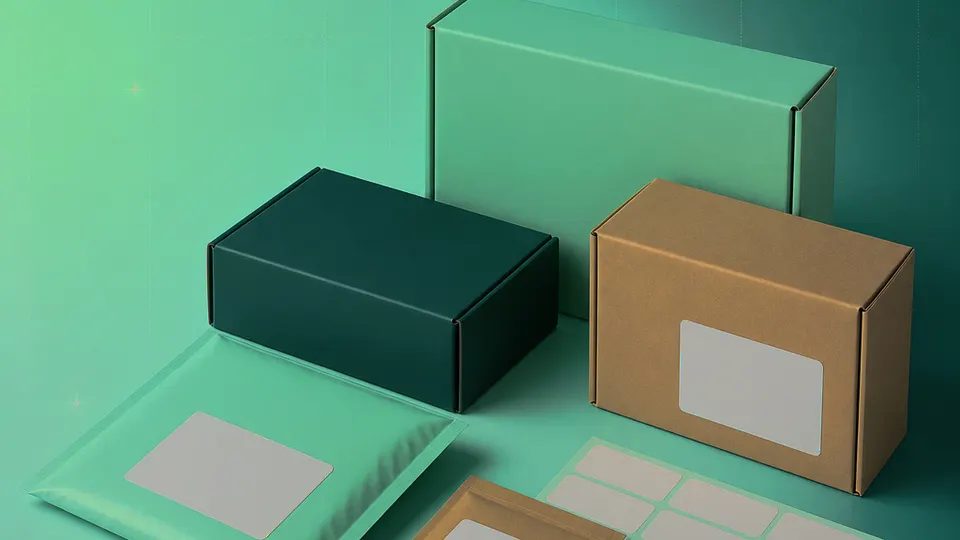
Example packaging shown without real business names or product marks.
Labels you'll print
Start with the package, then choose the sheet.
These product numbers and sizes come from the PrintGenius catalog. Check the package before printing.
Shipping labels
Shipping and package labels
Pick a large layout for the information your shipping workflow requires. Confirm the stock dimensions and leave any carrier-specific code area to your established shipping software.
A compact label can repeat a shop’s return details across envelopes or parcels. Keep the address consistent in one source field and proof punctuation and postal formatting.
Use a small label to identify a gift note or package variant. A separate order field keeps the batch aligned with the packing list without printing unnecessary customer data.
A short product or shelf identifier can help the packer find stock. Use a controlled SKU text value; the label tool does not generate machine-readable barcodes.
Use one row for each product, container, or print variant. Keep changing values in separate columns so you can update a name or date without rebuilding the whole sheet. For fields that should never appear on the customer-facing label, retain them in a separate internal record rather than mapping them into the print layout.
Order ref
Recipient
Street
City
Region
Postal code
Return address
DEMO-1041
Alex Morgan
42 Alder Street
Portland
OR
97205
Juniper Parcel Co.
DEMO-1042
Riley Park
18 Harbor Way
Salem
OR
97301
Juniper Parcel Co.
DEMO-1043
Casey Lane
7 Maple Court
Eugene
OR
97401
Juniper Parcel Co.
Each row becomes a label
Each row becomes a label in the selected layout. If a cell already contains the complete label, whole labels pasted into cells also work. Keep a copy of the reviewed source sheet and compare the first, middle, and last label with the package list before printing.
Keep a non-sensitive order reference next to the address so a printed stack can be reconciled with the packing table. Protect the workbook, limit access to staff who need it, and delete or archive order data under your normal retention policy. Do not add passwords or payment card details to a label sheet.
Plan the print run
Build a workflow your team can repeat.
Online sellers, small shops, makers, and teams sending customer mail can use a consistent source sheet to keep names and batches aligned. The examples below are a starting point; measure the actual stock and check your approved package copy.
Choose a layout based on the actual stock in the printer. The product number on the box is more reliable than a remembered size. Check the sheet dimensions and the label count, then confirm that the printer tray uses the same paper size.
Set the spreadsheet order before generating a sheet. If the rows sort by recipient or order ID, make sure the packing list uses the same order. Print a small sample first to verify that the first label corresponds to the first package on the table.
Return-address labels can be prepared from a stable business profile rather than repeated manual typing. Keep the return address in one approved field and test a new office address with a short proof before replacing a regular run.
For customer addresses, check line breaks and postal values in the preview. A label layout cannot fix a misspelled street or missing unit number. Use a separate, authorized address validation process when your shipping workflow requires it.
Features available today
From source rows to a checked sheet.
Label Wizard supports more than 1,400 catalog product numbers, custom sizes, one-label layouts, pasted lists, and spreadsheet input by row or by cell. It can bold lines, shrink text to fit, start at any label on a partly used sheet, and create a PDF, a new Google Doc, or output in the currently open Doc. On rectangular labels, upload, crop, and zoom your logo to place it on the left of the text; it is saved in your Google Drive for next time. Preview and print a test before the production run.
Label Wizard does not create barcodes, QR codes, product images, or color backgrounds. It does not certify product claims or replace a business’s own review process.
Add your logo
Put your brand on rectangular labels.
Upload, crop, and zoom an original logo, then place it on the left of your label text. The logo is saved in your own Google Drive for next time; this feature is for rectangular labels, not round labels.
PGShipping & addressProduct · batch · date
Print tips for Shipping & address
Test the stock and the finished surface.
Use the exact sheet stock and paper size, and keep carrier-specific content in the shipping system that produces it.
Review recipient details privately and limit the workbook to the staff and period required for fulfillment.
Keep a return-address label short enough to fit the actual envelope or parcel panel.
Print at Actual size and compare a plain-paper proof with the stock before a customer batch.
Related resources
Continue with a matching template, size, and guide.
Avery®-compatible layouts are identified by dimensions and sheet geometry, not by assuming that different brands are interchangeable. Confirm the number and measurements on your own package. PrintGenius is independent and is not affiliated with or endorsed by Avery or any label manufacturer.