Print organized food and bakery labels from a product spreadsheet
A bakery table may include different loaves, cookies, preserves, and seasonal boxes. The label must fit the package while making the product version easy to identify. A shared spreadsheet can help staff update a batch without copying text between a stack of separate files.
Label Wizard turns rows into printable labels in Google Docs or Sheets. It can arrange supplied text, but it does not review ingredient statements, allergen notices, dates, or food-law requirements. Treat the catalog as a dimensional starting point and check both the copy and the package fit before printing.
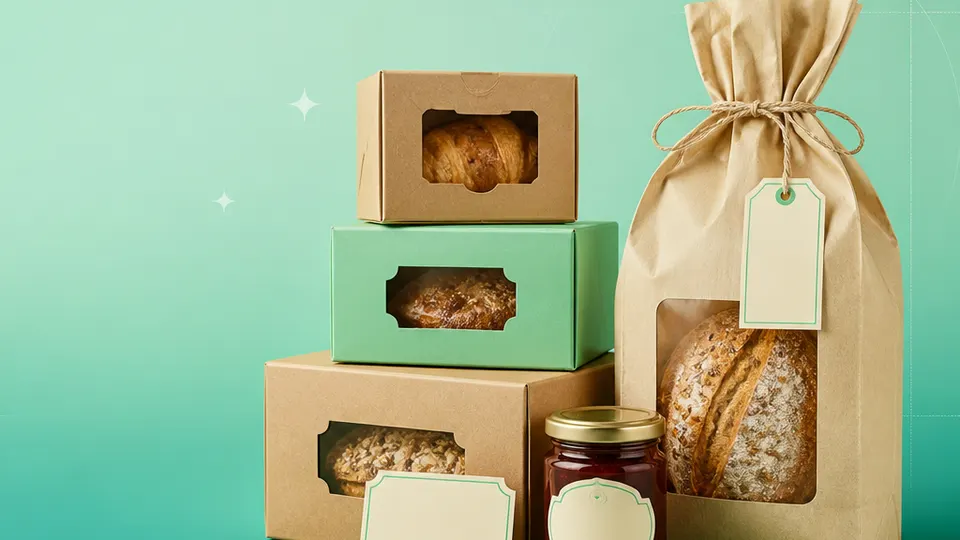
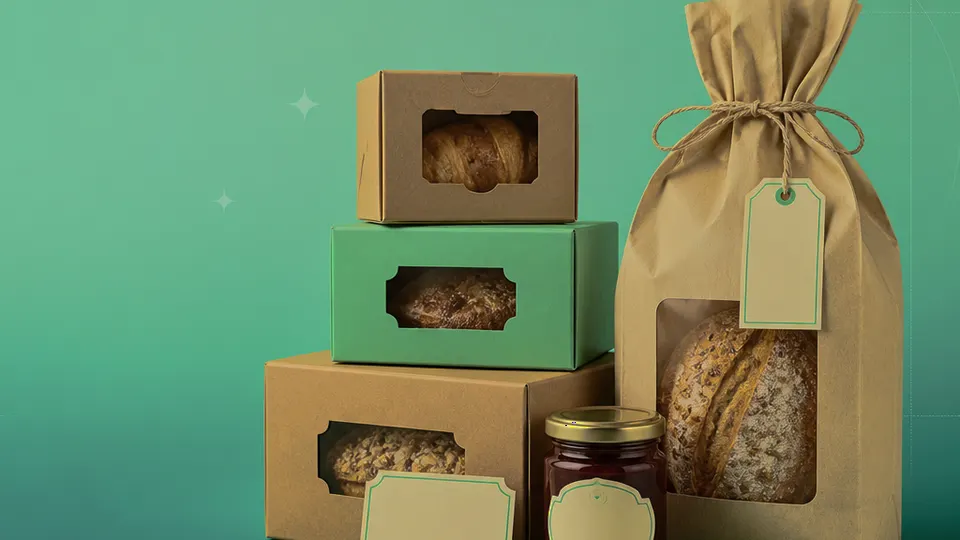
Example packaging shown without real business names or product marks.
Labels you'll print
Start with the package, then choose the sheet.
These product numbers and sizes come from the PrintGenius catalog. Check the package before printing.
Multipurpose labels
Bakery box and bag labels
A rectangular label can identify a loaf, cookie box, or market bag. Keep product name and batch information in separate columns so a packaging update does not change the underlying recipe record.
Use a larger layout when the approved text needs more space. Proofread exact wording, line breaks, and type size after the preview; do not rely on a screen-only check for a printed panel.
A compact label can carry a date or batch reference for a short run. Use a consistent date format and verify it against the production sheet before the labels reach a package.
A round lid label or a small package sticker can group seasonal items. Use a distinct set name and retain item-level records so the outside label does not replace the recipe or ingredient source.
Use one row for each product, container, or print variant. Keep changing values in separate columns so you can update a name or date without rebuilding the whole sheet. For fields that should never appear on the customer-facing label, retain them in a separate internal record rather than mapping them into the print layout.
Product
Variant
Ingredients copy
Allergen copy
Batch
Baked on
Best by
Package
Oat Loaf
Seeded
Use approved text
Contains wheat
OL-084
2026-10-18
2026-10-21
Paper sleeve
Market Cookie Box
Cocoa
Use approved text
Contains milk
MC-031
2026-10-19
2026-10-22
Kraft box
Apple Preserve
Small jar
Use approved text
See recipe record
AP-016
2026-10-17
2027-04-17
Glass jar
Each row becomes a label
Each row becomes a label in the selected layout. If a cell already contains the complete label, whole labels pasted into cells also work. Keep a copy of the reviewed source sheet and compare the first, middle, and last label with the package list before printing.
Use the row as a package-version record, not as the master recipe. Keep approved text, batch, and date fields separate. When one ingredient changes, update the reviewed copy before generating a new print run. A packer should be able to compare the finished label with the product name and batch listed on the work sheet.
Plan the print run
Build a workflow your team can repeat.
Bakers, cottage-food makers, market vendors, and small packaged-food producers can use a consistent source sheet to keep names and batches aligned. The examples below are a starting point; measure the actual stock and check your approved package copy.
Make the package choice first. A bread sleeve, cookie box, and jar lid have different flat surfaces, and the label should not cross a fold or closure. Measure the actual package where the label will sit and note whether the surface is rough, cold, or exposed to condensation.
Keep product name, variant, and batch in discrete columns. Those fields are easy to scan and less likely to be mixed when a filter changes the row order. Use the same date format throughout the workbook and verify that the dates are appropriate for the particular run.
Ingredient and allergen language is sensitive to formulation and jurisdiction. Keep it under your normal review process. A print preview can show layout, but it cannot tell whether wording is complete or legally sufficient.
For market assortments, prepare one row for every package configuration. If a box contains a variety, describe the actual package contents in the approved copy rather than assuming each item has the same ingredients.
Features available today
From source rows to a checked sheet.
Label Wizard supports more than 1,400 catalog product numbers, custom sizes, one-label layouts, pasted lists, and spreadsheet input by row or by cell. It can bold lines, shrink text to fit, start at any label on a partly used sheet, and create a PDF, a new Google Doc, or output in the currently open Doc. On rectangular labels, upload, crop, and zoom your logo to place it on the left of the text; it is saved in your Google Drive for next time. Preview and print a test before the production run.
Label Wizard does not create barcodes, QR codes, product images, or color backgrounds. It does not certify product claims or replace a business’s own review process.
Add your logo
Put your brand on rectangular labels.
Upload, crop, and zoom an original logo, then place it on the left of your label text. The logo is saved in your own Google Drive for next time; this feature is for rectangular labels, not round labels.
PGFood & bakeryProduct · batch · date
Print tips for Food & bakery
Test the stock and the finished surface.
Use stock suitable for the package’s surface and expected cold, damp, or oily conditions.
Avoid placing the label over a bakery box opening, jar seam, or package fold.
Print a physical proof to confirm that ingredient and allergen copy remains legible at the final size.
Run a plain-paper check at 100% or Actual size before loading adhesive stock; record the template and batch used.
Related resources
Continue with a matching template, size, and guide.
Avery®-compatible layouts are identified by dimensions and sheet geometry, not by assuming that different brands are interchangeable. Confirm the number and measurements on your own package. PrintGenius is independent and is not affiliated with or endorsed by Avery or any label manufacturer.