Bring file folders, binders, and office supplies into one index
Folders and shared supplies become difficult to find when teams use different names for the same thing. A simple label system can connect shelves, binders, and file folders to one index without requiring a new filing platform.
Keep the index in a spreadsheet, choose a label size that fits the spine or tab, and print a small proof before converting a whole cabinet. The label should make a location easy to find while leaving any private or confidential information off a public-facing surface.
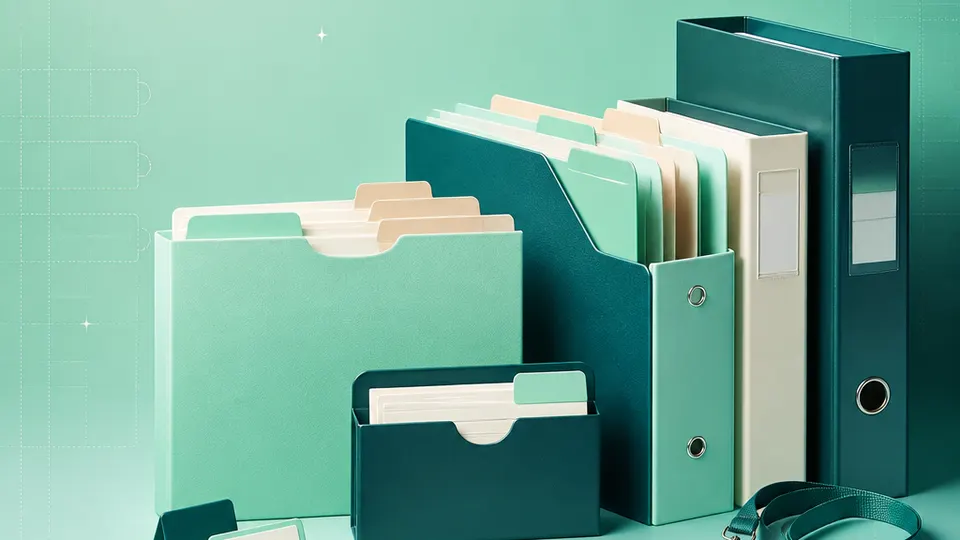
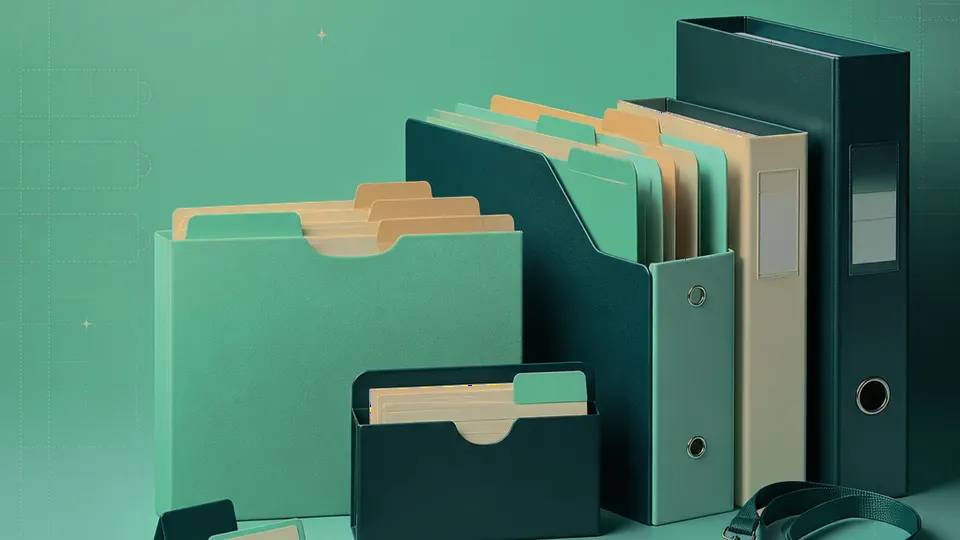
Example packaging shown without real business names or product marks.
Labels you'll print
Start with the package, then choose the sheet.
These product numbers and sizes come from the PrintGenius catalog. Check the package before printing.
File folder labels
File-folder tabs
A short department or record label can help staff return a folder to the correct drawer. Use the same naming pattern as the index so a label and its storage record agree.
Use durable naming conventions to identify shared supplies, storage bins, or device locations. Avoid using a label as the only place to record an asset’s sensitive data.
Use one row for each product, container, or print variant. Keep changing values in separate columns so you can update a name or date without rebuilding the whole sheet. For fields that should never appear on the customer-facing label, retain them in a separate internal record rather than mapping them into the print layout.
Folder or item
Department
Location
Owner team
Review date
Access note
Facilities requests
Operations
Cabinet A · Drawer 2
Building team
2026-10-01
Internal
Workshop supplies
Programs
Shelf B · Bin 4
Studio team
2026-10-03
Shared
Vendor contracts
Finance
Cabinet C · Binder 1
Finance team
2026-10-05
Restricted
Each row becomes a label
Each row becomes a label in the selected layout. If a cell already contains the complete label, whole labels pasted into cells also work. Keep a copy of the reviewed source sheet and compare the first, middle, and last label with the package list before printing.
Choose a location hierarchy before printing: building, room, cabinet, drawer, shelf, or bin. Put the same hierarchy in the workbook and on the label. A short code can be used if it maps to a readable index, but avoid inventing abbreviations that only one staff member understands.
Plan the print run
Build a workflow your team can repeat.
Office managers, school offices, clinics, studios, and small organizations can use a consistent source sheet to keep names and batches aligned. The examples below are a starting point; measure the actual stock and check your approved package copy.
Measure the actual tab or spine. Folder tabs vary in width, while binders may have a curved or recessed spine. Decide whether the label needs to sit inside a clear pocket or directly on the surface before selecting stock.
Use names that remain useful after staffing changes. A role or department may last longer than a person’s name. Where a label must identify a current owner, include a review process so stale labels are replaced promptly.
Do not print confidential details where visitors or other departments can see them. Use a general location or an internal reference and keep the access-controlled directory in the system that protects it.
Before a cabinet rollout, print a small group of labels and walk the route with another staff member. Check whether the hierarchy is obvious from the aisle and whether the same wording appears in the inventory index.
Features available today
From source rows to a checked sheet.
Label Wizard supports more than 1,400 catalog product numbers, custom sizes, one-label layouts, pasted lists, and spreadsheet input by row or by cell. It can bold lines, shrink text to fit, start at any label on a partly used sheet, and create a PDF, a new Google Doc, or output in the currently open Doc. On rectangular labels, upload, crop, and zoom your logo to place it on the left of the text; it is saved in your Google Drive for next time. Preview and print a test before the production run.
Label Wizard does not create barcodes, QR codes, product images, or color backgrounds. It does not certify product claims or replace a business’s own review process.
Add your logo
Put your brand on rectangular labels.
Upload, crop, and zoom an original logo, then place it on the left of your label text. The logo is saved in your own Google Drive for next time; this feature is for rectangular labels, not round labels.
PGOffice & filingProduct · batch · date
Print tips for Office & filing
Test the stock and the finished surface.
Measure tabs and binder spines in their final position, including pocket or cover margins.
Select adhesive that can be removed cleanly if folders or storage locations are re-used.
Use readable words rather than dense codes unless a shared legend is available.
Print a test strip at Actual size and check labels on the real folders before ordering a cabinet-wide batch.
Related resources
Continue with a matching template, size, and guide.
Avery®-compatible layouts are identified by dimensions and sheet geometry, not by assuming that different brands are interchangeable. Confirm the number and measurements on your own package. PrintGenius is independent and is not affiliated with or endorsed by Avery or any label manufacturer.